
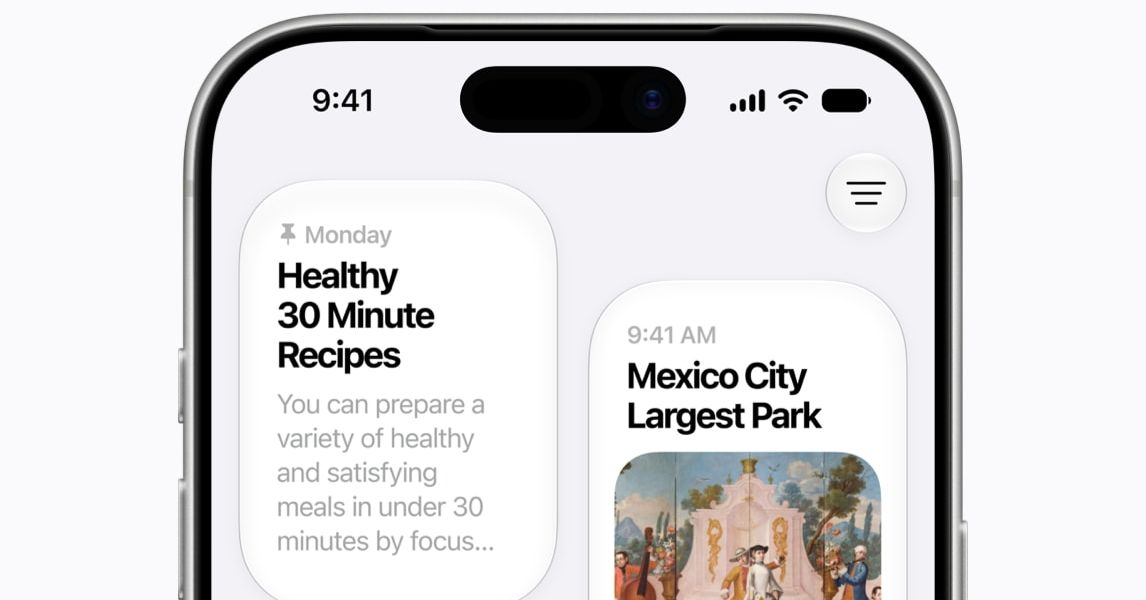
Apple’s latest iPhone and iPad software—iOS 27 and iPadOS 27—is here. While this release won’t make as big of a splash as Apple’s big Liquid Glass redesign in the prior version, there’s still plenty here that could change how you use your device.
iOS 27 and iPadOS 27 focus largely on stability improvements that you’ll notice in your everyday use. There are several quality-of-life improvements, like how Shortcuts are significantly easier to set up, but the big highlight is the Siri AI upgrade. Here’s everything you need to know.
Updated September 14, 2026: We’ve refreshed this story to reflect the latest updates, and that iOS and iPadOS 27 are rolling out today.
Is Your iPhone or iPad Compatible?
Apple sometimes drops a few older devices from the support list with new versions of its operating systems, supposedly because the aging hardware can’t run the latest screen behaviors without feeling sluggish. (Apple typically supports iPhones and iPads for six to seven years.) But there’s good news this year. iPhones from 2019 and newer—the iPhone 11 and up, including the iPhone SE (2nd Gen)—will support iOS 27.
That means any iPhone that received iOS 26 is still compatible with iOS 27. If you’re unsure of your iPhone model, go to Settings > General > About and look at the model name.
iPads aren’t as straightforward, as they have a unique naming structure. Apple retired the “generations” moniker and is now using the chipset to denote the iPad model. You can check your iPad model using Apple’s support documentation. A few iPads are cut off from the iPadOS 27 update, including the 8th-gen iPad from 2020 and the 5th-gen iPad Mini.
- iPad: 9th gen and later, including A16
- iPad Mini: 6th gen and later, including A17 Pro
- iPad Air 11-inch: 4th gen and later, including M2, M3, and M4
- iPad Air 13-inch: M2 and later
- iPad Pro 11-inch: 2nd gen and later
- iPad Pro 12.9-inch: 4th gen and later
- iPad Pro: M4 and later
How to Install iOS 27 or iPadOS 27
The final versions of iOS 27 and iPadOS 27 are here. Before installing, it’s very important that you back up your devices. Head to Settings, tap your name at the top, and select iCloud. Then tap iCloud Backup, and tap Back Up Now. Read our How to Back Up Your iPhone or iPad guide for other methods and more details.
Then, head to Settings > General > Software Update and choose iOS 27 or iPadOS 27 when you see the option. Installation will take several minutes, and your iPhone or iPad will restart, so set aside several minutes for the whole process.
Siri AI, the new assistant, will ask to index your phone or iPad to learn more about you, your apps, and your data so it can be more helpful. This indexing takes a while—anywhere from a few hours to a couple of days—so be prepared to wait a bit.
Apple Intelligence Only Works on Select iPhones
Remember—even if older iPhones and iPads receive the iOS 27 or iPadOS 27 update, that doesn’t mean all of the new features will be available. Apple Intelligence is still only compatible with the iPhone 15 Pro and newer and select iPads, meaning that several artificial intelligence features are unavailable on older devices.
Top New iOS 27 and iPadOS 27 Features
Here’s a top-line view of some of the biggest changes coming to iOS and iPadOS 27. The updates are largely the same across both operating systems.
Siri AI and a New Siri App

Courtesy of Apple
Siri is finally becoming “a more capable assistant,” or so Apple claims. The company says this is largely thanks to its third-generation foundation models, developed from the ground up with Google’s Gemini models. However, Apple says it isn’t using Google’s infrastructure to power Siri interactions, and that no user data from Siri actions gets shared with Google.
Siri AI has an all-new look when you activate the assistant. It now resembles a glass orb. You can type or talk naturally to Siri, and there’s even a dedicated Siri app where you can revisit previous conversations or pick up where you left off on a different device. Siri is also now in the camera app, giving you a more direct way to start a visual search, much like Google Lens. You can even point the camera at a restaurant bill, and Siri can split the tab between you and your friends.
The assistant understands your personal context, so it can comb through your emails, messages, and photos to find relevant information based on your query. It can then take action on your behalf, whether that’s drafting an email in a specific tone or getting wine recommendations for a particular dish. Siri’s voice is more expressive, but you can also customize the assistant’s voice, its expressiveness, and pace.
We’ve collated all the new things you can do with Siri AI if you want to try the revamped assistant.
Platform Stability Improvements

Courtesy of Apple
Apple has focused on making iOS run faster in this update. The company says app launches are up to 30 percent faster, newly captured photos in your Photo Library load up to 70 percent faster, and AirDrop transfers are up to 80 percent faster. The iPhone will do a better job switching between Wi-Fi and cellular, so you hopefully won’t have that awkward minute with no service while you wait for your device to switch networks as you leave the house. Many of these upgrades will affect older iPhone models, like the iPhone 11, thanks to a better-optimized CPU Scheduler.
Liquid Glass Refinements

Courtesy of Apple
Hate Liquid Glass? Love Liquid Glass? You have some options to make it work for your tastes in iOS 27. Apple says it has generally updated the design language to improve readability and contrast. App icons are sharper, for example. But you now finally have a slider in the Settings menu that lets you adjust the intensity of the Liquid Glass look, from super clear to more opaque. You can customize this in Settings > Appearance > Liquid Glass.
Child Safety Features

Courtesy of Apple
Apple spent a lot of time in the WWDC keynote talking up child safety features in iOS 27 and iPadOS 27. A new Setup Assistant lets parents choose system apps and other essential apps for the child when first setting up an Apple device. An “Ask to Browse” feature means any new websites the kids encounter in Safari get sent to a parent for approval, and a feature called Communication Safety prevents children from seeing nudity or violence in the Messages or FaceTime apps; those are blurred by default.
